VoiceCal Scheduler, for Google Calendar
Voice calendar
Add to Google Calendar by voice
VoiceCal™ puts meetings on your Google Calendar from one sentence you say or type. Say "Lunch with Sam Tuesday at noon", check the card, tap, and it's on your calendar.
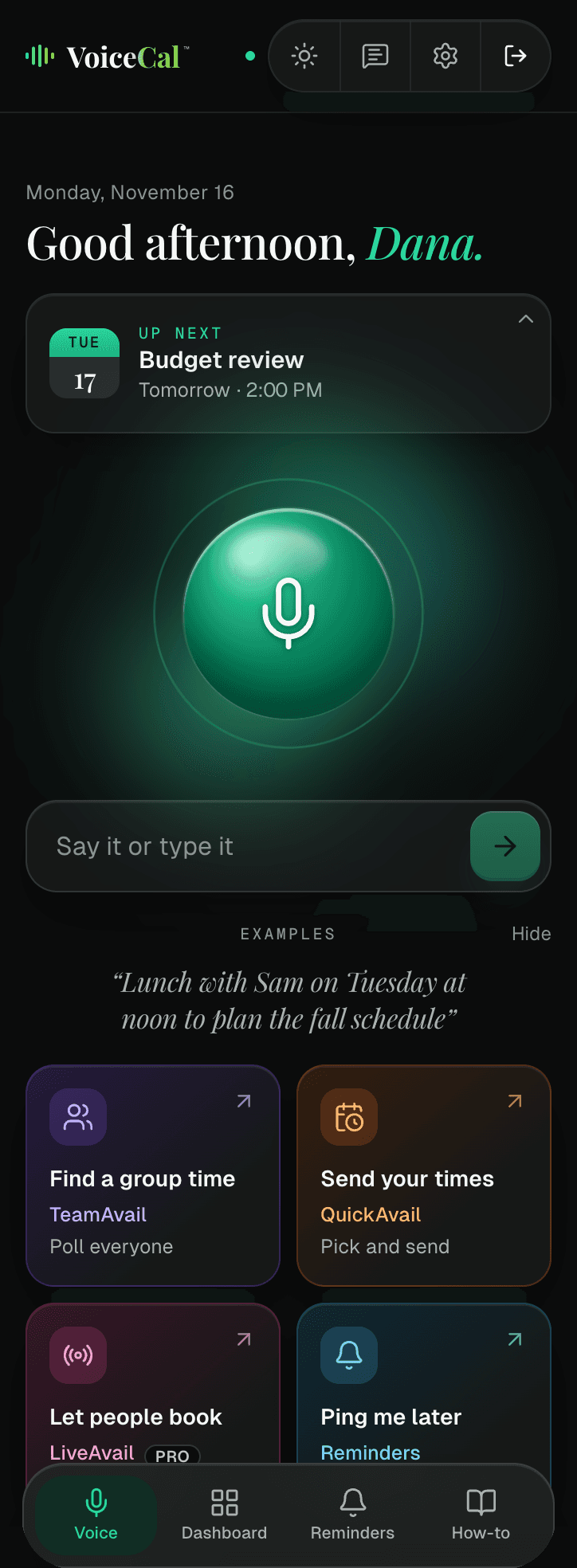
Three steps from a sentence to your calendar
Step 1: Say it or type it.
Tap the microphone and say what you need, for example "Coffee with Sam Friday at 9am to talk about hiring, invite sam@example.com".
Step 2: Check the card.
The card shows the title, the day and time, the length, the alerts and the people. "Your day" shows whether that time is free. Tap anything to change it.
Step 3: Tap "Create event".
It's on your Google Calendar, and anyone with an email gets a Google Calendar invite.
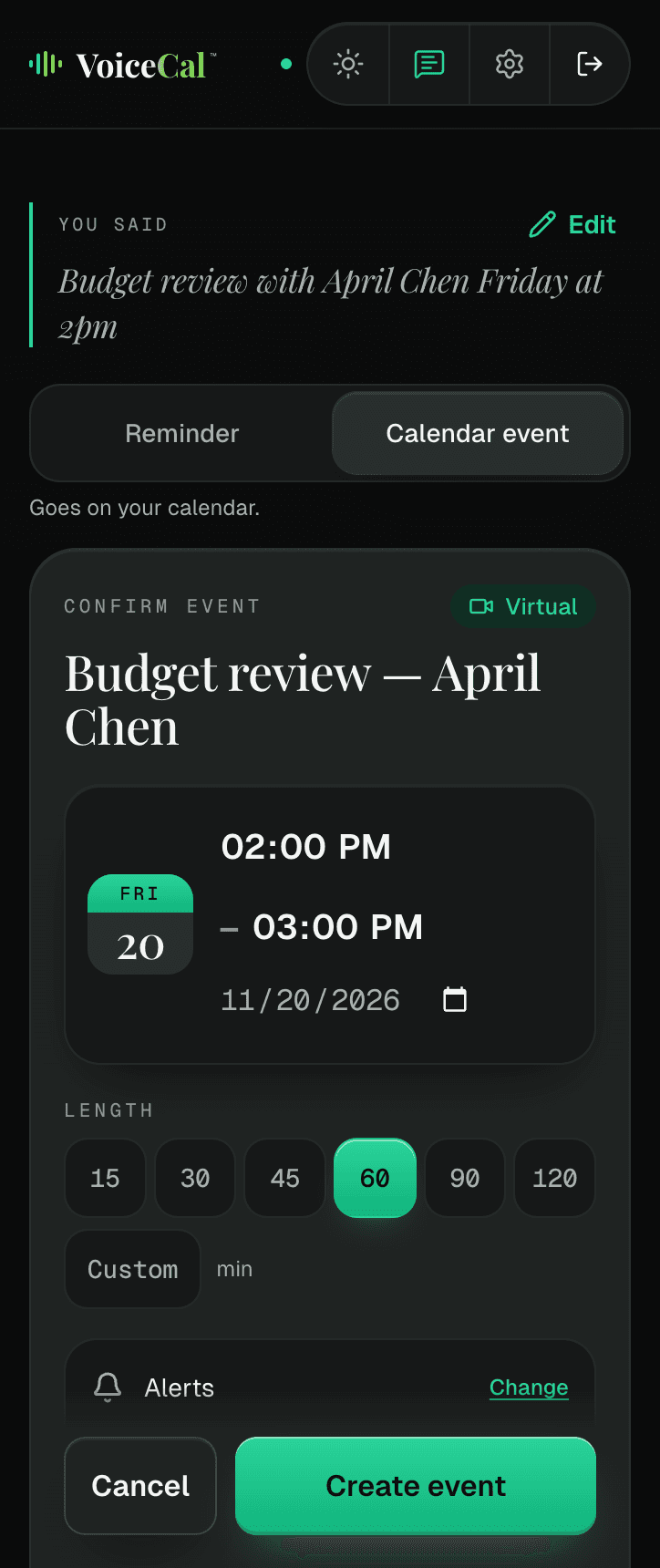
You check before anything is saved
Say it the way you'd tell a friend. AI handles the details, and nothing is saved until you check it. If something is missing, such as the time, VoiceCal™ asks one short question.
Talk to your calendar, not just add to it
Say "Move my 2:00 meeting on Thursday to 3:30pm" or "Cancel my 10am meeting on Friday", and VoiceCal™ finds the event and asks you to confirm. Ask "What's on next week?" to see the week, which never changes anything on your calendar. After a move or a delete, an Undo button appears for a short time.
Who it's for
People whose calendars run their day and who set up meetings with other people: founders, consultants, small-team leads. When the meeting involves several people, VoiceCal can also ask them which times work (see TeamAvail™).
Any phone, any computer
VoiceCal™ runs in the browser, with nothing to download. On your phone, add it to your Home Screen: that's what puts reminders on your lock screen, and on an iPhone it's the only way. It works with Google Calendar today; Outlook, Exchange and Apple Calendar are on our list.
What it costs
Free during early access. Join before January 1, 2027 and you keep founding pricing: $12 a month instead of $15. After early access, the Free plan still includes 50 smart actions a month.
Questions
Do I have to talk out loud?
No. Type the same sentence in the "Say it or type it" box and tap the arrow at the right end of the box. On a computer you can press Enter instead. Typing and speaking do the same thing and count the same.
What if it gets the day or time wrong?
You'll see it on the card before anything is saved, and you can tap the field to fix it. To tell us, tap the speech-bubble icon in the top bar; every note is read.
Does it work with Outlook, Exchange or Apple Calendar?
Not yet. VoiceCal™ works with Google Calendar today. Outlook, Exchange and Apple Calendar are on our list. Tell us which one you need at help@voicecal.app; it helps us decide the order.
Does looking at my calendar use up my plan?
No. Asking to see a day, week or month never uses a smart action, and neither does setting a reminder.