VoiceCal Scheduler, for Google Calendar
QuickAvail
Send your free times as one link
QuickAvail™ sends someone a few open times you choose, as one link. They reserve one and it goes on your Google Calendar with them invited, or they just see when you're free; you decide which.
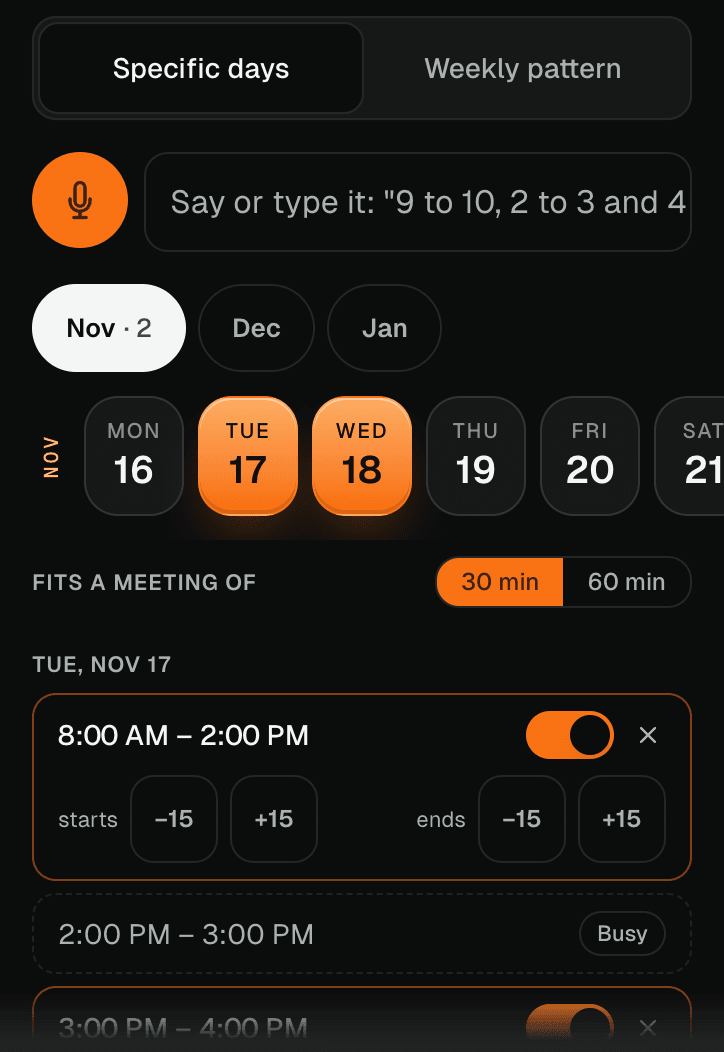
How it works
Step 1: Pick the times.
Tap "Send your times" and choose the days. With your calendar connected, your open times are filled in and your busy times are marked "Busy". You can also say "Wednesday 9 to 10".
Say it the way you'd tell a friend. AI handles the details, and nothing is saved until you check it.
Step 2: Choose the details.
Pick a 30 or 60 minute meeting, virtual or in person, and what your guest can do: "Reserve a time" or "Just see my times".
Step 3: Send the link.
Add their email and VoiceCal™ sends it for you, or copy the link and paste it anywhere.
Share your availability without sharing your calendar
The link carries only the times you chose to share. Your guest never sees your busy times, event titles or anything else from your calendar.
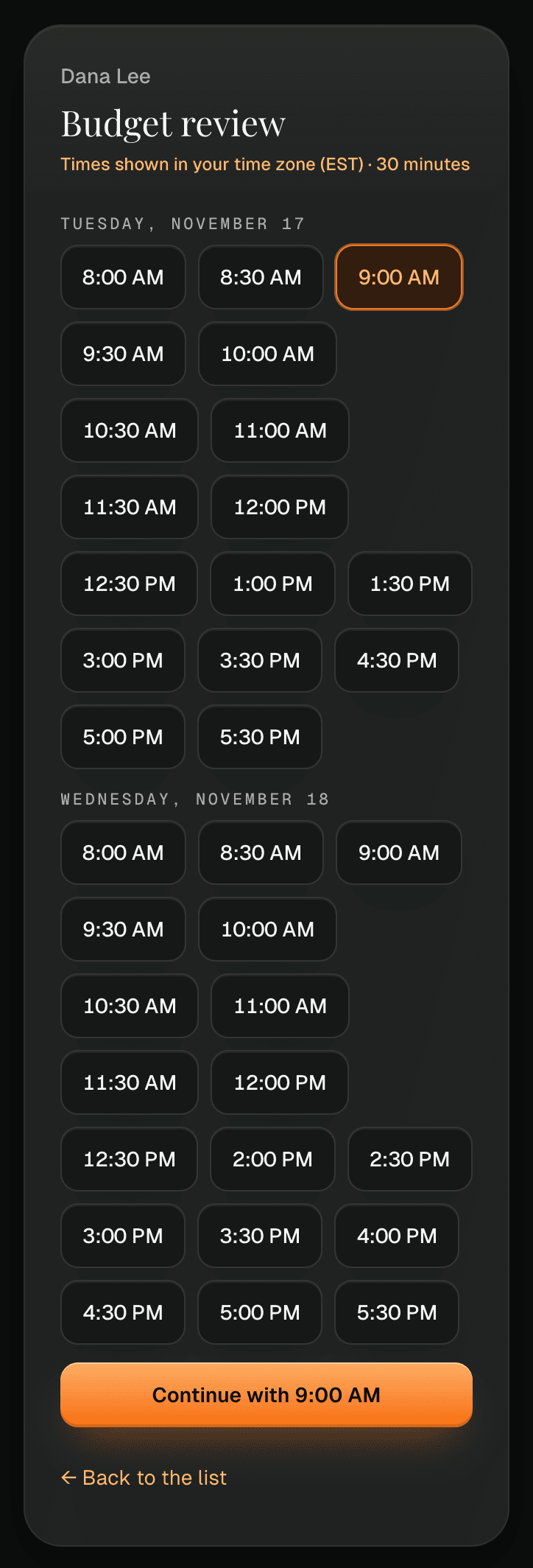
What your guest sees
Your guest gets an email listing your times, with a "Reserve a time" button. They see the times in their own time zone, pick one, enter their name and email, and tap "Reserve this time". They don't need an account.
After they reserve
The meeting goes straight on your Google Calendar with your guest invited, named for the purpose and the guest, for example "Budget review (Sam Rivera)". Each booking gets its own Google Meet link, or the place you chose. One link takes one reservation, and a time reserved through one link is no longer offered on your other links.
What it costs
Free during early access. After early access, the Free plan keeps 2 active QuickAvail™ links, and Pro has unlimited QuickAvail™ links.
Questions
Does my guest need an account?
No. They open the link, pick a time and enter their name and email.
Can my guest see my calendar?
No. They see only the times you chose to share, never your busy times or event titles.
Can the meeting be in person?
Yes. Under "Meeting", choose "In person" and type where. VoiceCal™ remembers the place for next time, and you can switch a booking between virtual and in person later.
How is QuickAvail different from LiveAvail?
QuickAvail™ sends times you choose by hand, for one booking. LiveAvail™ is a link that works out your open times from your calendar each time someone opens it.